- Start by opening your dashboards in a separate browser tab.
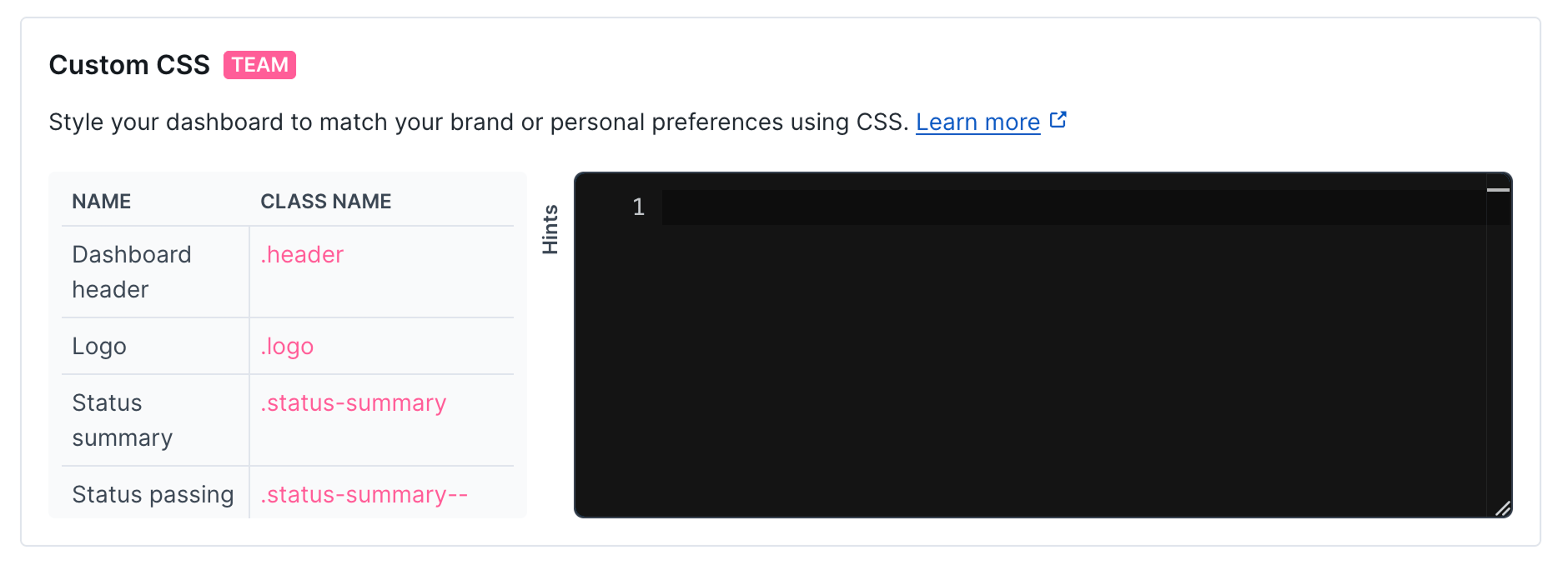
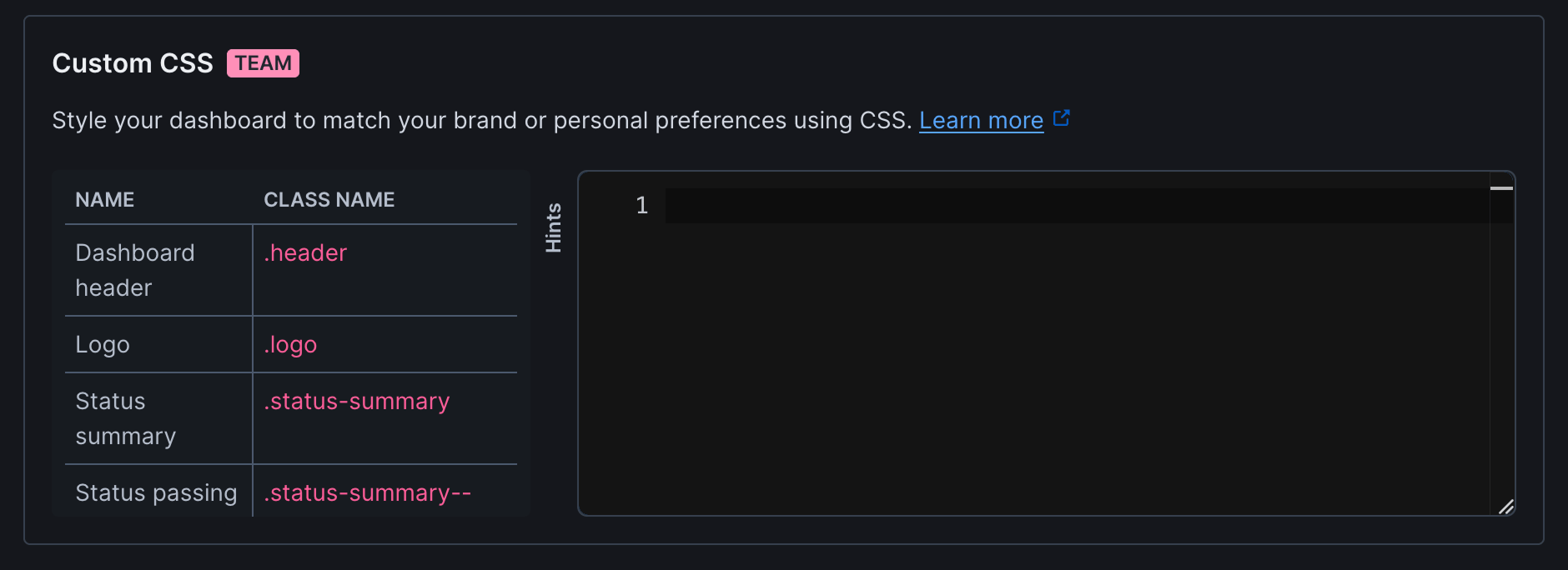
- Generate some boilerplate CSS code by hitting the Generate boilerplate button.
- Open the hints tab so see all the classes available for you to target.
- Make some edits, hit Save dashboard and reload your dashboard.
Custom CSS is only available on certain plans. For more details, see our Pricing page.
CSS Classes
The following table lists the CSS classes available for customizing your dashboard appearance:Styling examples
We created some examples of how you can style your dashboard using the brand colors from well known brands. This should help you explore the possibilities you have available.Amazon Web Services style
In this example we aim to replicate the brand style of Amazon Web Services (AWS).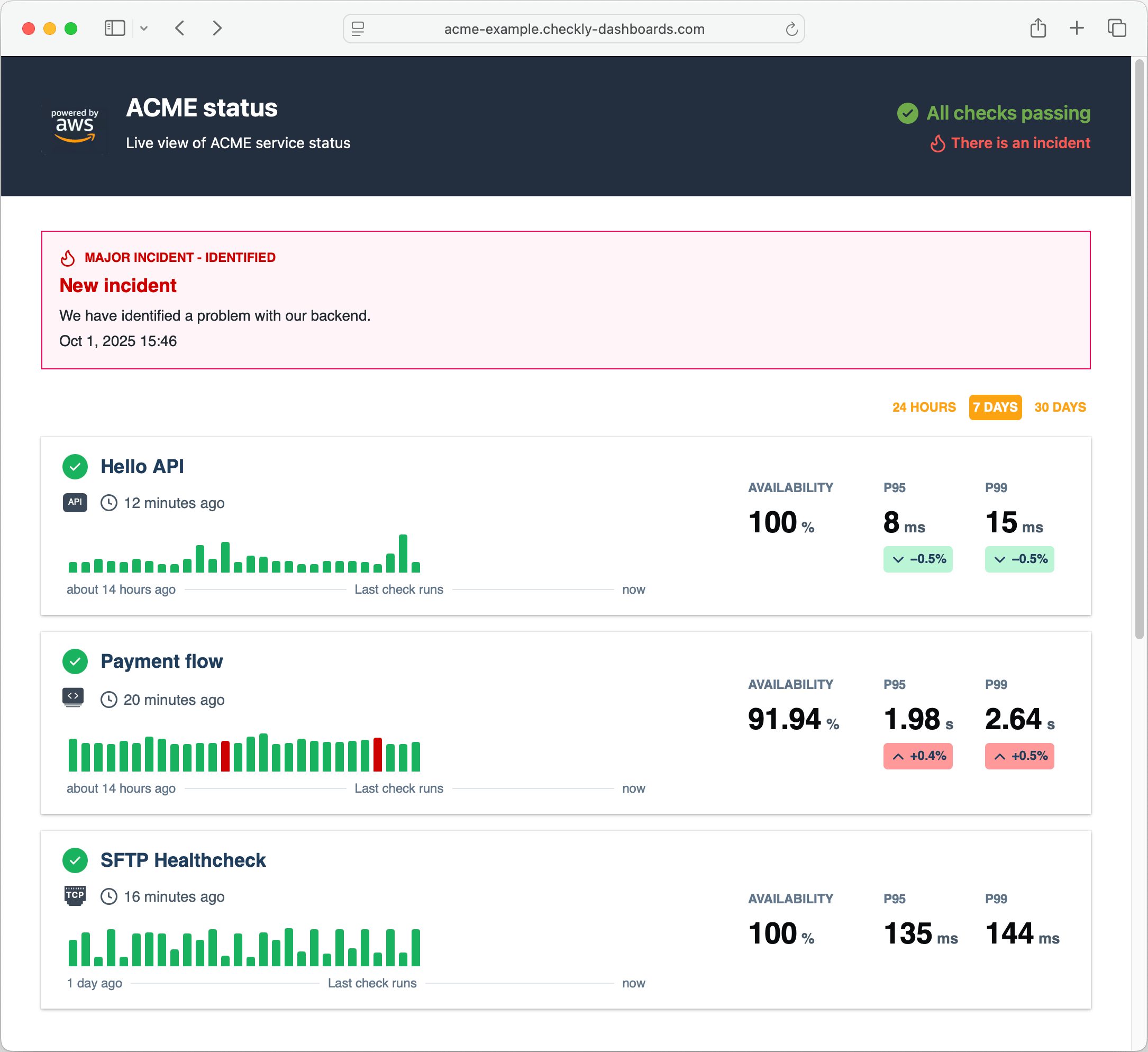
- We set a dark
backgroundfor the header with lightcolortext. We also tweak the status and incident summary. - We set the link
colorto the orange brand color. - We remove the
border-radiuson the check cards and add abox-shadow.
Linear style
In this example we aim to replicate the dark style of Linear.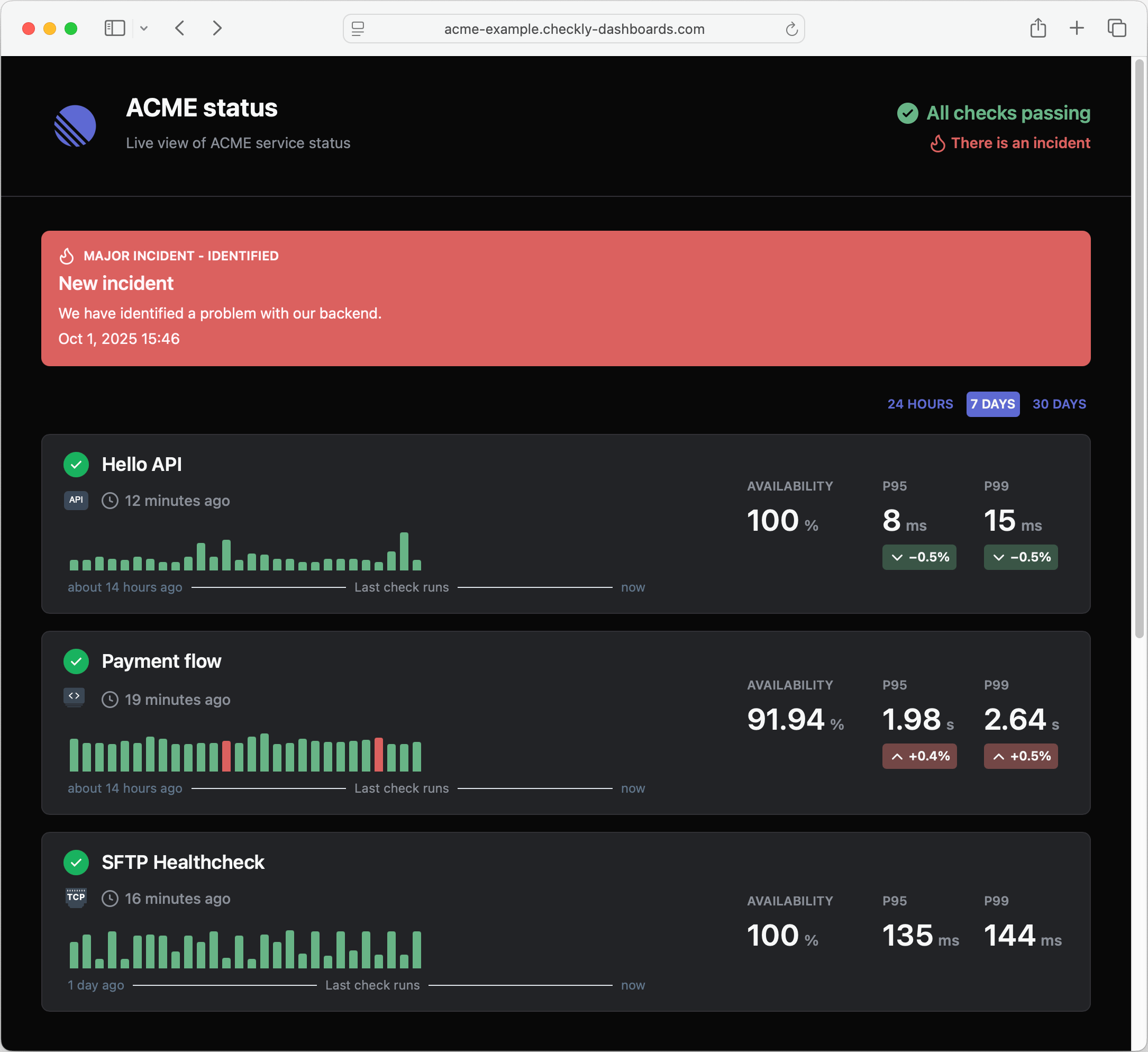
- We set a dark
backgroundfor both the header and main sections. - We set a lighter
colorfor a range of text elements to contract with the dark background - We set a new color pattern for the big red incident alert at the top of the page.
- We tweak the brand “red” and “green” colors to better match the palette.
Hello Kitty style
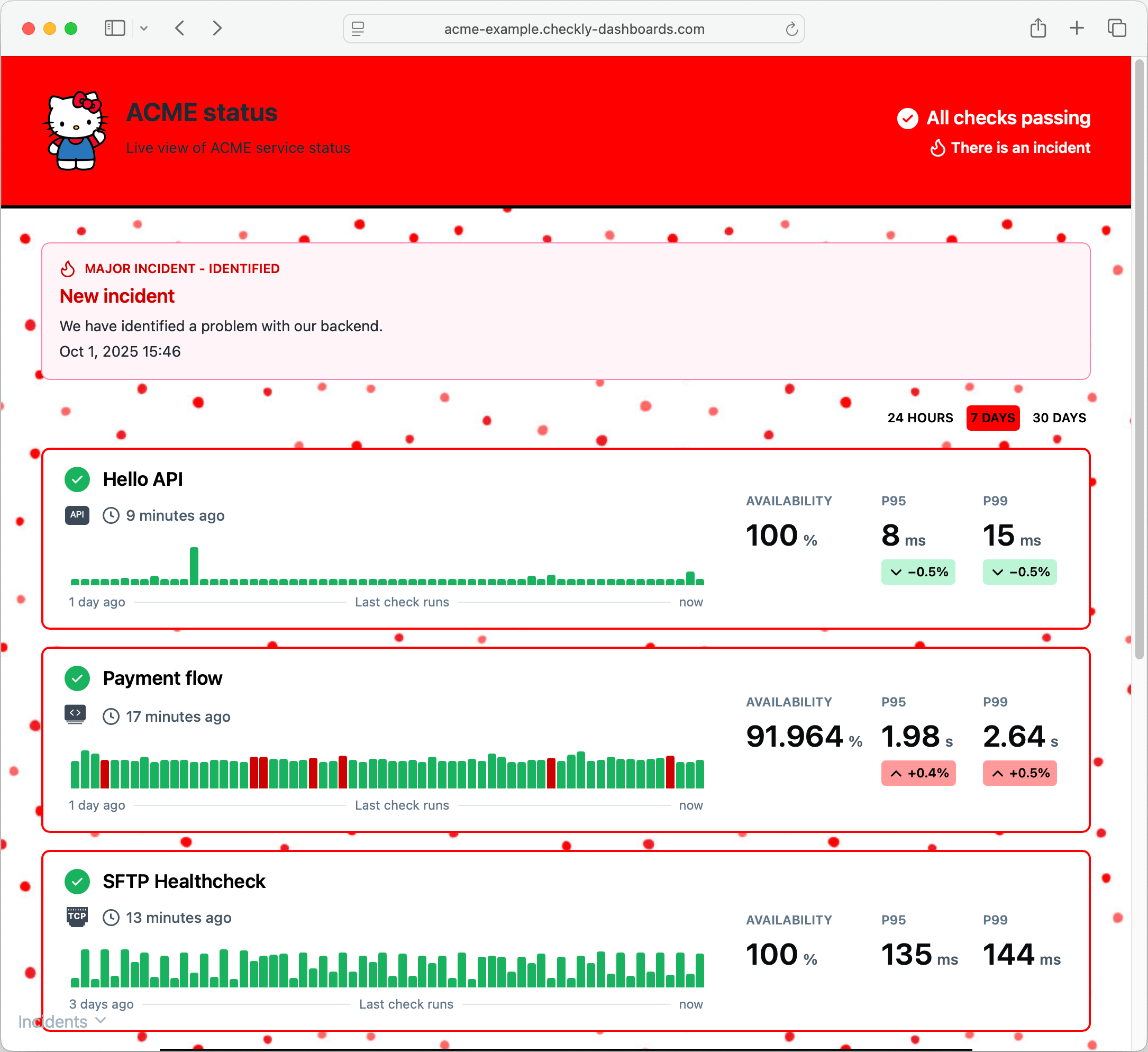
“Why so serious?” you might ask. No reason, you can go crazy with styling, adding repeating backgrounds and images.